

Introduction
The UNIFORM App comes standard with the program and can therefore be used by everyone. The advantage of the app is that you always have all your animal data on your phone in your pocket.
Working with the app
The app works offline. An internet connection is only required while synchronizing. A constant internet connection is therefore not necessary.
Because the app works offline, the data is not always up to date. The data is only updated when you synchronize. So if you do not synchronize for two days, the data in the app will be two days old. The app itself also indicates this.
If you have more than one phone connected, agree to synchronize around the same time every day. This way, you will all have the same information in the UNIFORM app.
Setup
To setup the the UNIFORM App for the first time, we recommend contacting the helpdesk.
If it already worked the first time and you have a new phone or want to use the app on another phone, you can follow these steps:
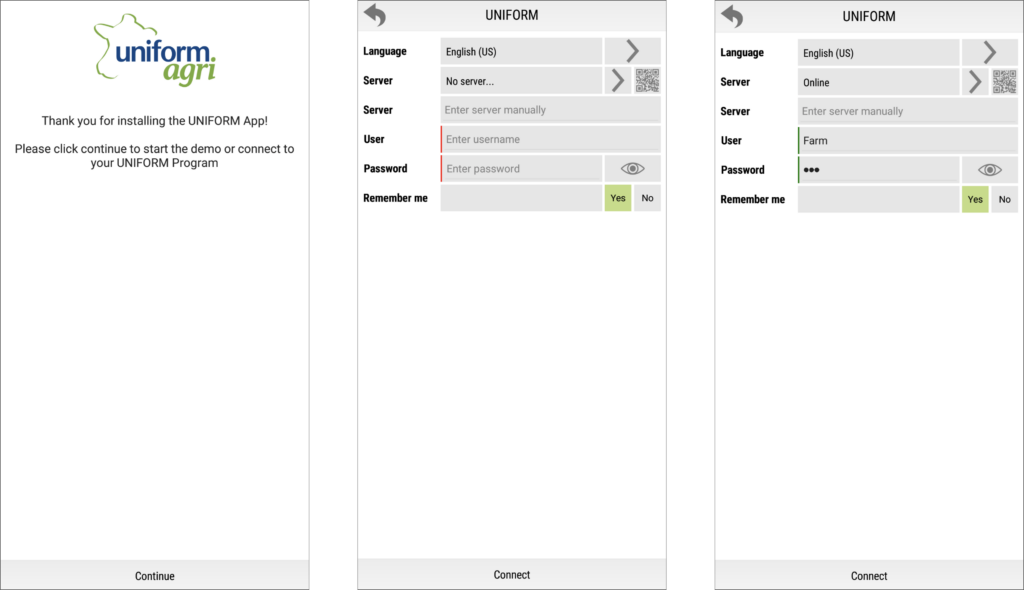
- Open the UNIFORM App
- Click on [Continue]
- Click on the QR code behind ‘Server’
- The camera on your phone opens
- Scan the QR code on your PC
- Fill in the password
- Click on [Connect]
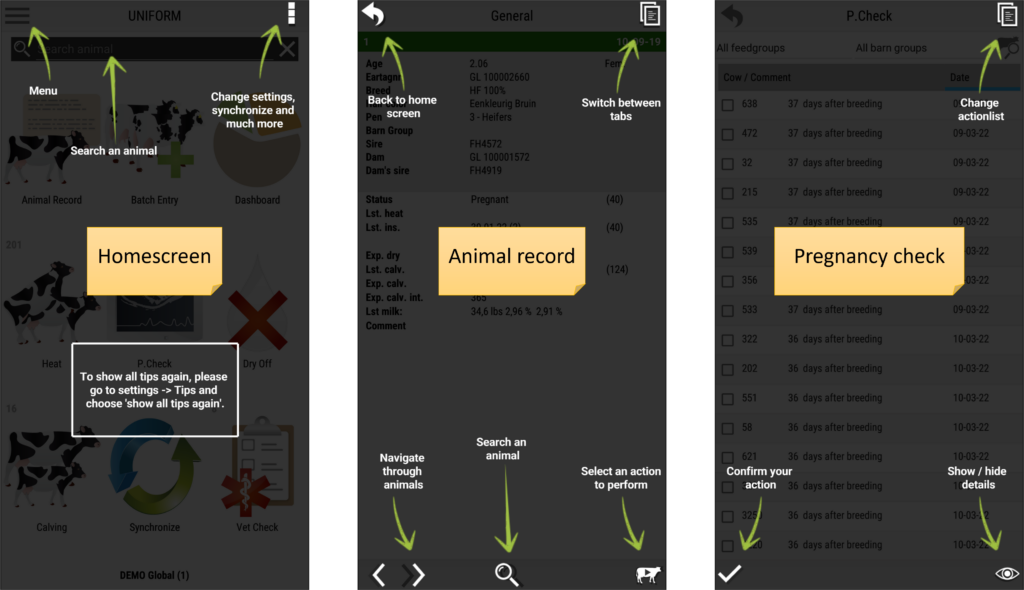
Tip screen
When you have loaded the data for the first time, you will see a tip screen with every new screen. The tip screen shows all the functions in the app. The tip screen can be closed by tapping anywhere on the screen.
If you want to see the tip screen again, go to the three dots in the top-right corner and then go to settings.
Synchronizing
It is important to synchronize the UNIFORM App on a daily basis. Synchronizing updates the data on both sides: in your app and on your computer. For example, all entered inseminations are sent to the computer, and the milk yields from this morning are updated in the app.
To synchronize, press the [Synchronize] button in the app. Depending on whether you have entered data in the app, you will be given one or three options.
- If you have not entered anything, there is only one option:
- Receive new data
- When you have entered something, there are these options:
- Receive new data
- View changes
- Send and receive new data
When you have entered something, press [send and receive new data]. For example, the changes you entered will be sent to the computer, and any new data from the computer will be sent to your app.
Tips & Tricks
- Hold down a tile for 3 seconds to change the tiles.
- If you want more than 9 tiles, there is a second screen available.
- This can also be set by holding down a tile for 3 seconds. At the top, you will see the option for a second screen.
- There is a complete hoof trimming module in the app. This is very useful if you want to enter hoof trimming-related issues.
Summary
- To set up the app for the first time, we recommend contacting the helpdesk.
- After the first setup, installing an extra phone can be done easily.
- When connecting for the first time, you will see a tip screen.
- Exchanging data from the computer to the app, or from the app to the computer, can be done by synchronizing. We recommend doing this daily.
- The tiles can be changed by holding down a tile for 3 seconds.


