

The UNIFORM App is now included in every UNIFORM Global license. According to users of the UNIFORM App, it is a great addition to the software on your PC, and since 2020, there are no extra costs involved.
Therefore, we would like to encourage everyone to start working with the app! If you are not using the app yet, please contact our helpdesk to activate the app in your license.
After activating the UNIFORM App in your license, you can either have the helpdesk install the app for you or do it yourself. We will explain how to install the app below.
First, go to [Help] and click on ‘License’. You will see this screen:
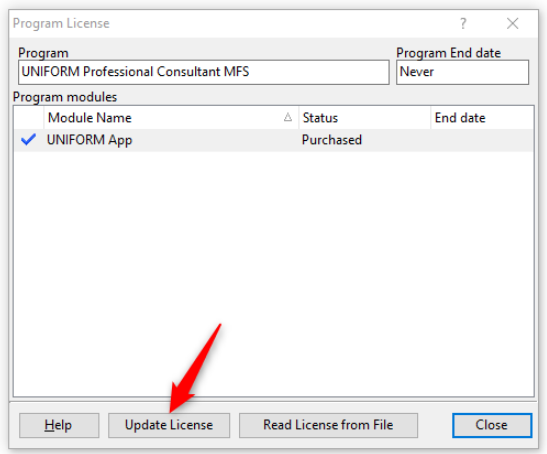
If you do not see the app, click on [Update License]. If you still do not see the UNIFORM App, please contact our helpdesk for assistance.
When you do see the app, please click on the app icon on the left side of your screen. When you click this icon, the screen below will appear:
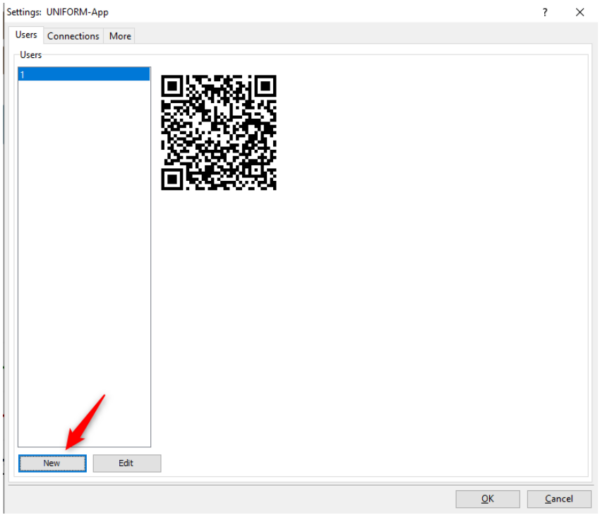
Click [New] in this screen and create a username and password. Then click [Ok] and open the screen again.
Settings on your phone
On your smartphone, download the UNIFORM App from the Google Play Store (Android) or the App Store (Apple).
When the download is finished, you will see this screen:
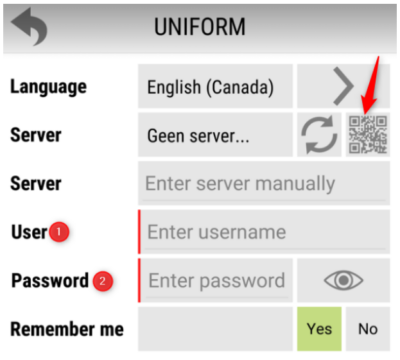
Click on the QR code (see picture) and point your camera at the QR code on your computer screen. The username (1) will appear in the user field. Please enter the password yourself.
Finally, click on the button [connect].
The UNIFORM App will now read in the data, so you can work with the app. If there are problems or if you need help, please ask our helpdesk.


