

Daily Events
The Daily Events screen is essential for your daily data entry. It is the place to quickly enter all events. Here you enter all events for individual animals or per group. These events include calvings, inseminations, diseases, movements, sales and many more.
You will find the Daily Events under Registration → Daily Tasks.
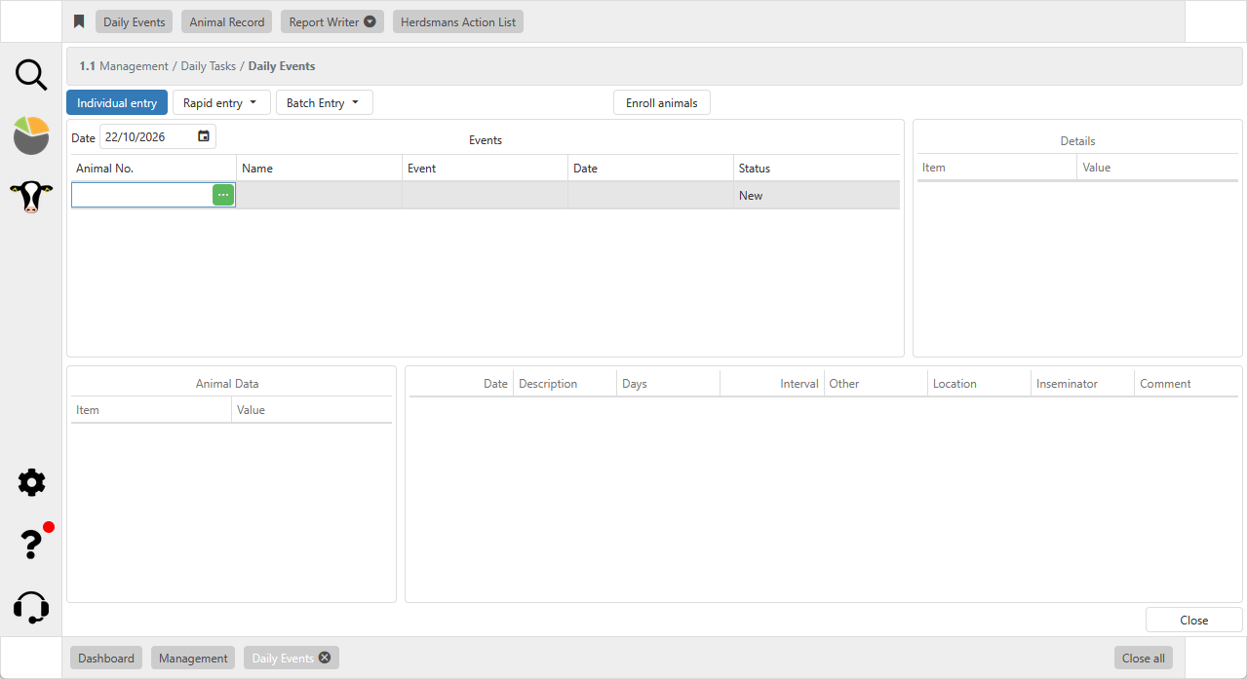
Individual entry
The Daily Events is used to enter an action for an animal. The following action can be used:
- In-Heat
- Breeding event
- Pregnancy status
- Dry off
- Calving
- Health event
- Preventive treatment
- Scores
- Movement (sale/purchase)
- Died
- Group change
For each animal, the most logical action is already highlighted.
The Daily Events can be controlled almost entirely with the Enter button on your keyboard.
Navigating Daily Events
The first item to enter is the animal number of the animal you want to enter an event for.
When entering a breeding event the following steps need to been taken
- Entering the date of the breeding event
- Select the breeding type ([Service AI], [D.I.Y. AI], [Natural serv.], [With Bull] or [ET-Implant])
- Select the AI-code/service bull
- Enter the batch no. (optional)
- Select the inseminator (optional)
- Select the reason (optional)
- Enter a comment (optional)
When entering a Pregnancy status the following steps need to been taken
- Entering the date of the pregnancy check
- Select the status ([Pregnant +], [Uncertain ?], [Negative -], [Do Not Breed] or [Aborted])
- Enter a comment (optional)
When entering a Dry off the following steps need to been taken
- Entering the date of the dry off
- Select the treatment (the treatment wizard will open)
When entering a Calving the following steps need to been taken
- Entering the date of the calving
- Enter the number of calves
- Enter the calving ease
- Enter a comment (optional)
- A next line will open, to enter the details for the calf
- Sex of the calf
- Keep on farm ([yes]/[no]/[stillborn])
- Eartag of the calf
- Extraordinary things
- Animal number of the calf
- Name of the calf
- Hair color
- Body weight
- Comment
When entering a Health event the following steps need to been taken
- Entering the date of the health event
- The health wizard will open
When entering a Movement the following steps need to been taken
- Entering the date of the health event
- Select the reason for the movement
- Select the buyer
- Enter the income
- Enter a comment (optional)
Rapid entry
With the rapid entry function it is possible to do an action for multiple animals.
The following actions can be done:
- Health entry
- Planned tasks
- Dry off
- Breeding events
Batch entry
With the Batch Entry function it is possible to do an action for a group of animals.
The following actions can be done:
- Grouping
- Milk entry
- Declare pregnant
Enroll animals
With the enroll animals function it is easy to enter a batch of animal all at once.
With this option you can quickly add new animals to the herd. This can be used to either add animals to a new database (new program) or add new animals (bought) to an existing herd. On the first screen you can select default items that concerns all the animals you put in. On the second screen you can tick on optional items that you would like to register for the animals as additional information. The third screen is a line entry screen where you can enter each individual animal with the selected data.
Tips and Tricks
- With the Enter button it is easily to enter data in Daily Events.
- For an action is it possible to use a letter as a shortcut.
The following letter can be used:- i = In-heat
- b = Breeding
- p = Pregnancy status
- d = Dry off
- c = Calving
- h = Health event
- m = Movement
- g = Group change
- r = Repeat
- Repeat can be used to repeat the previous action for a next cow.
Note that all the details will be repeated. - With the + and – button on your keyboard, the date can be changed easily.
- When you click on a block with three dots, a drop-down menu will appear.
- If a mistake has been made, but line is not finished, it is possible to delete the whole line with the Esc button on your keyboard.
- If a mistake has been made and the line is already finished, it is possible to deleted the line by clicking on [Delete] in line that has been processed.


